

 Back to all FAQs
Step 1: Sign in to the system
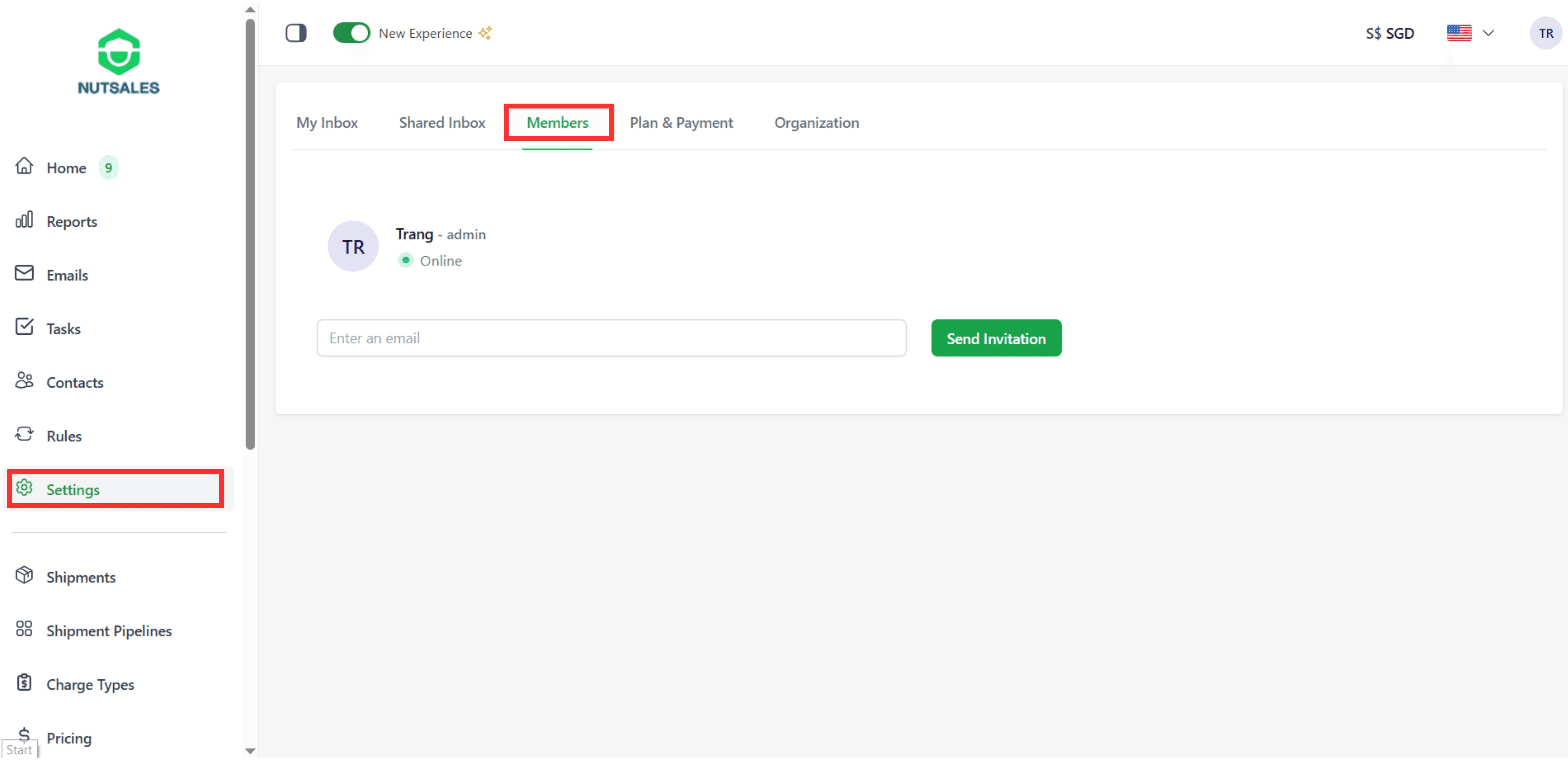
Step 2: Click “Settings” on the left sidebar and select “Members”
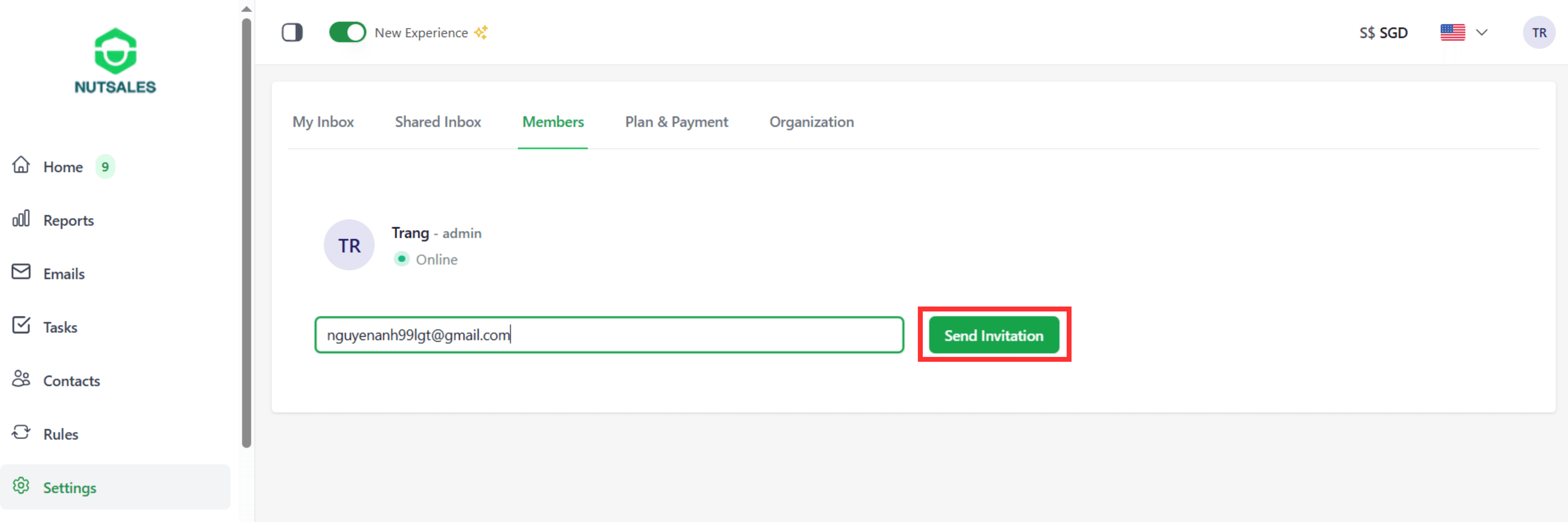
Step 3: Enter the email of the member you want to invite, then click “Send Invitation”
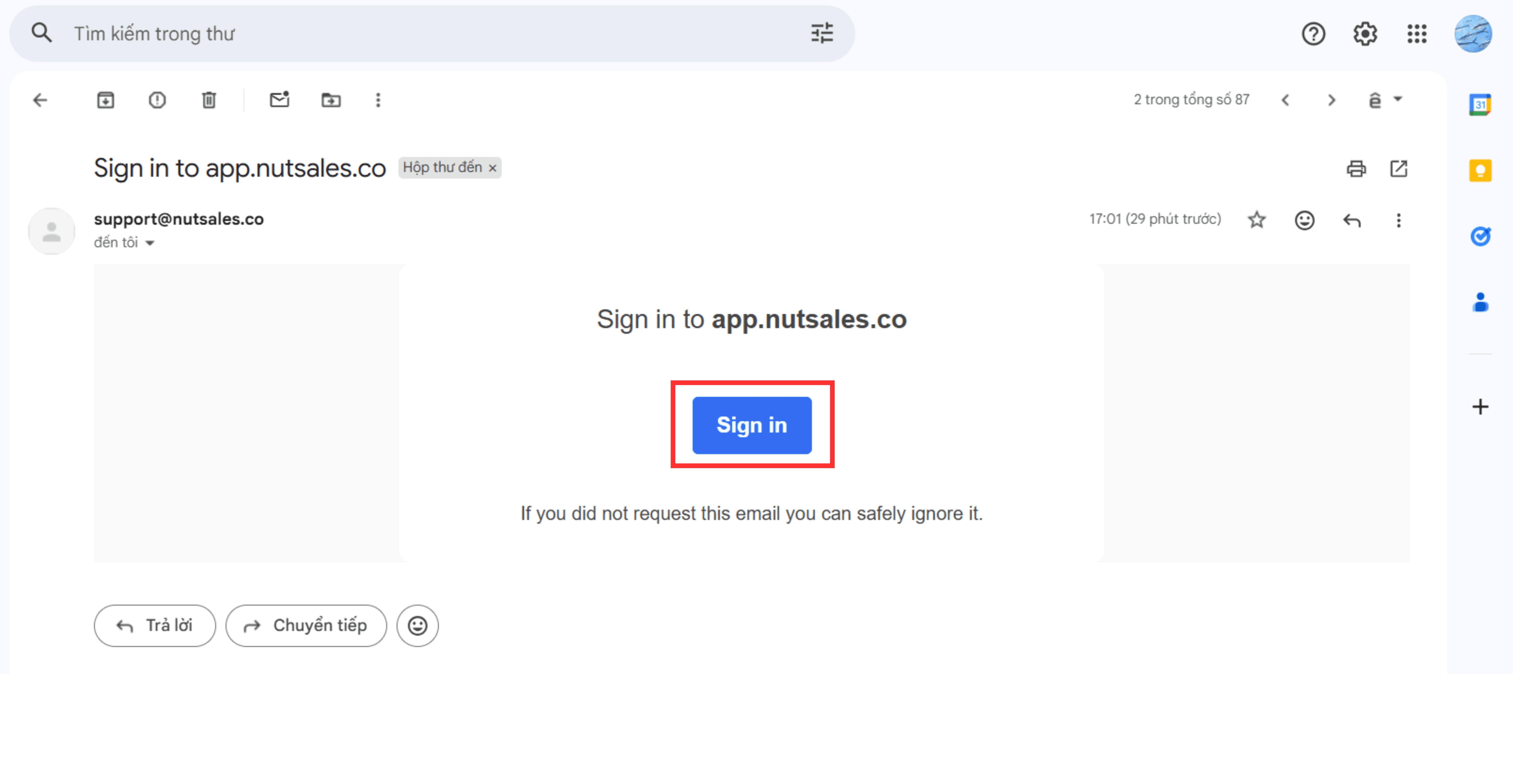
Step 4: The invited member clicks “Sign in” from the invitation email to join the Organization
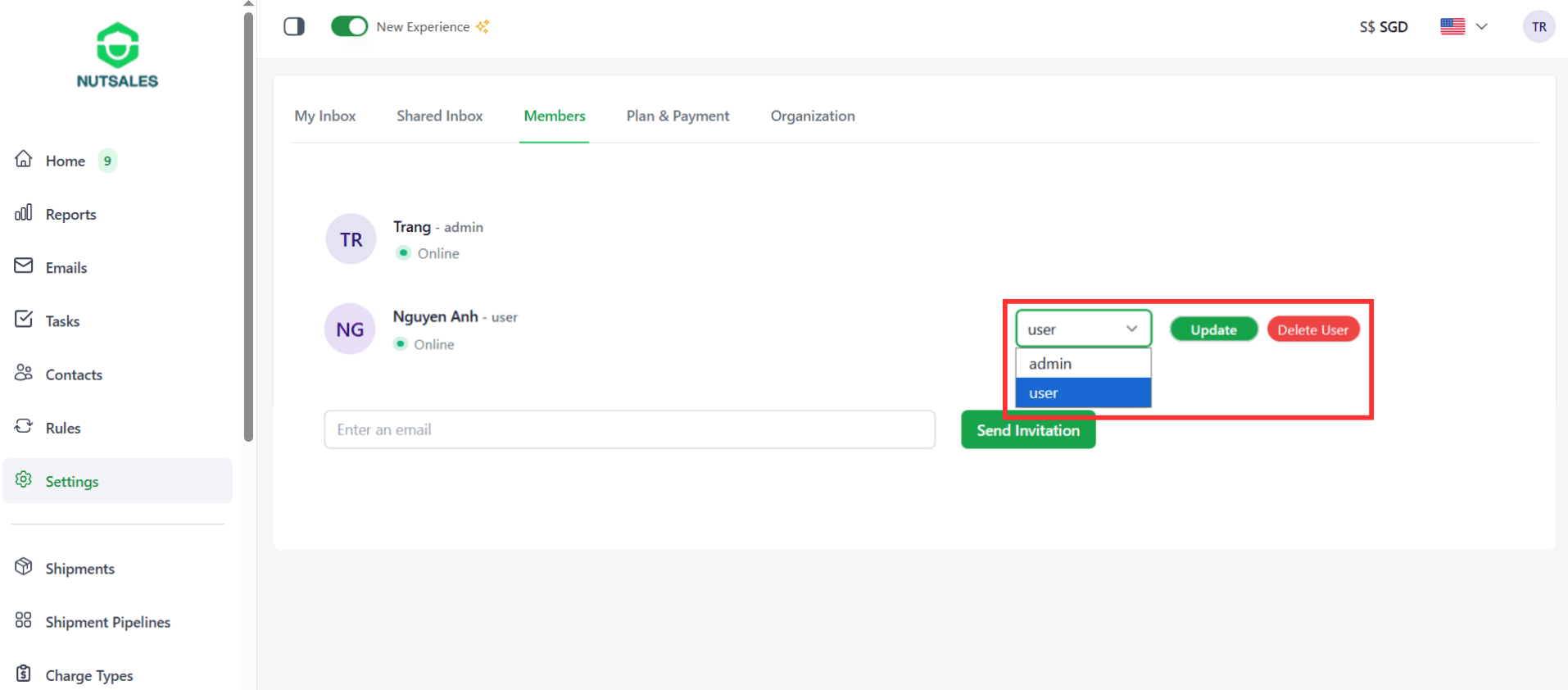
Step 5: To update a member’s role, click “Change Role”, select the new role, and click “Update”
Notes:
1. Users with a company email domain (e.g. @company.com) can sign in directly without an invitation. Users with public email domains (e.g. @gmail.com, @outlook.com) must be invited.
2. Only Admin can manage shared inboxes, manage members, create email pipelines, and set up email rules. Shipment-related features are the same for Admin and User.