

 Back to all FAQs
Step 1: Open the Nutsales mobile app.
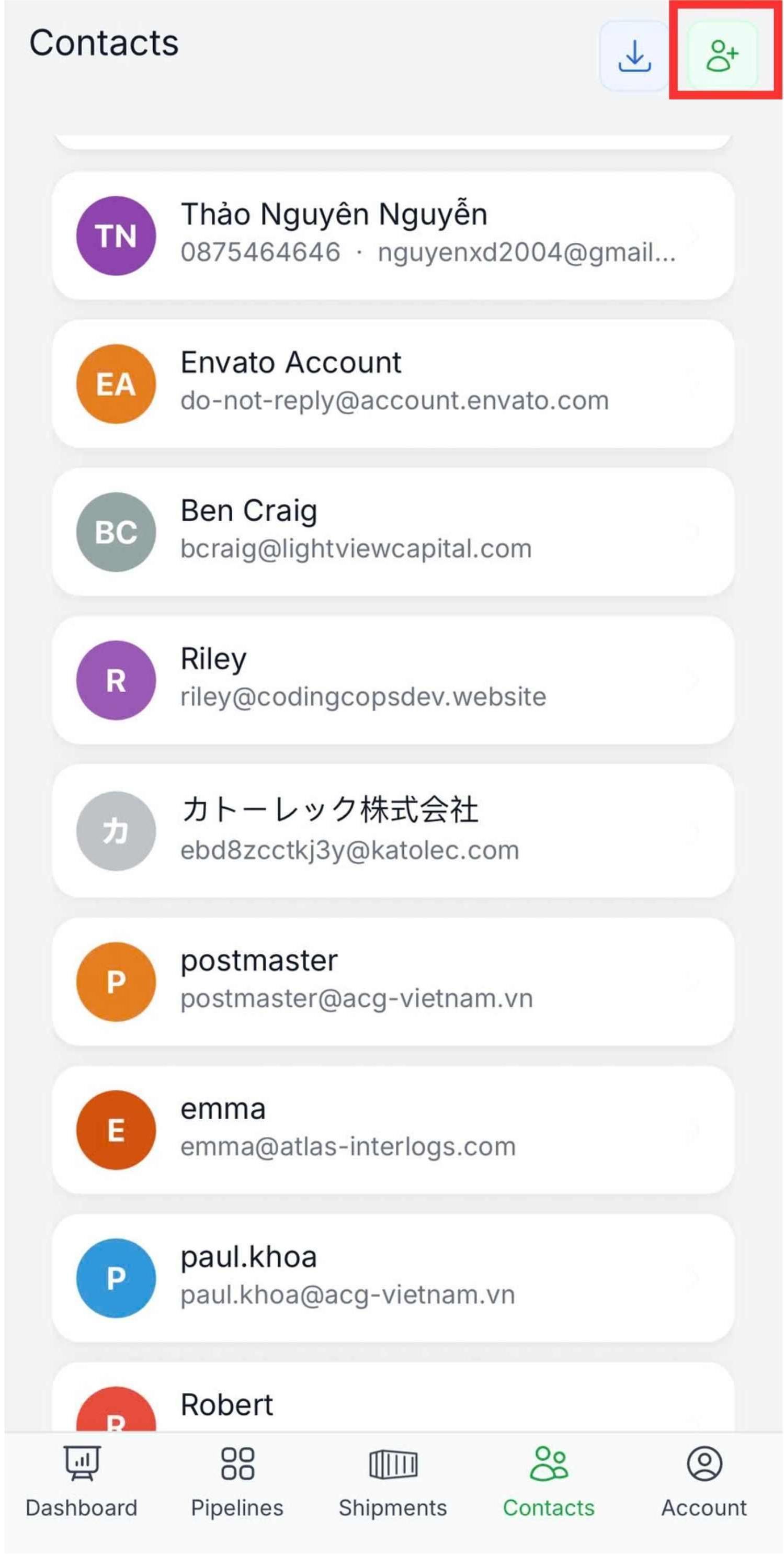
Step 2: Tap the “Contact icon” in the bottom navigation bar.

Step 3: Tap the “Add Contact (person + icon)” at the top right corner.
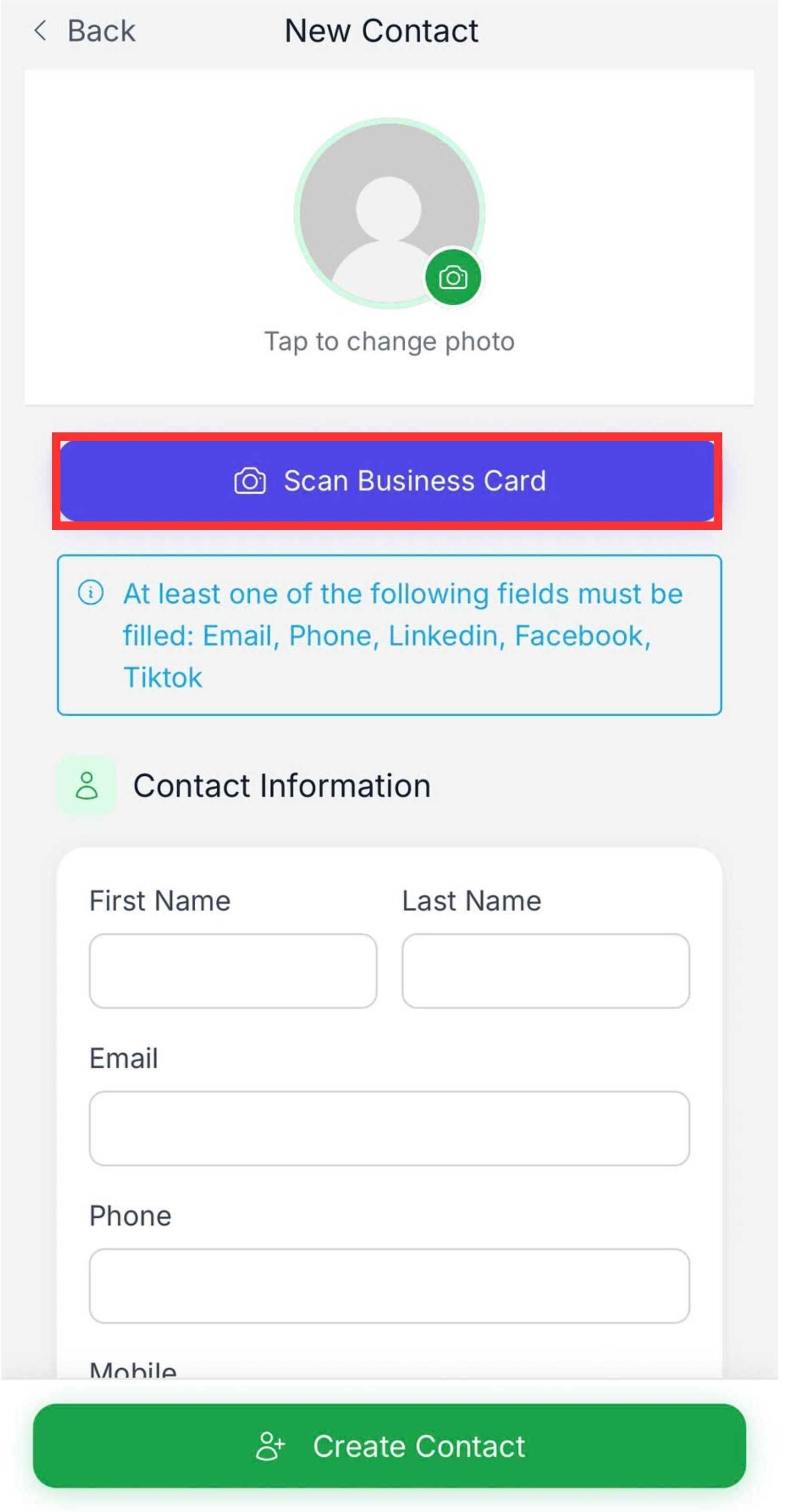
Step 4: Select “Scan Business Card”.
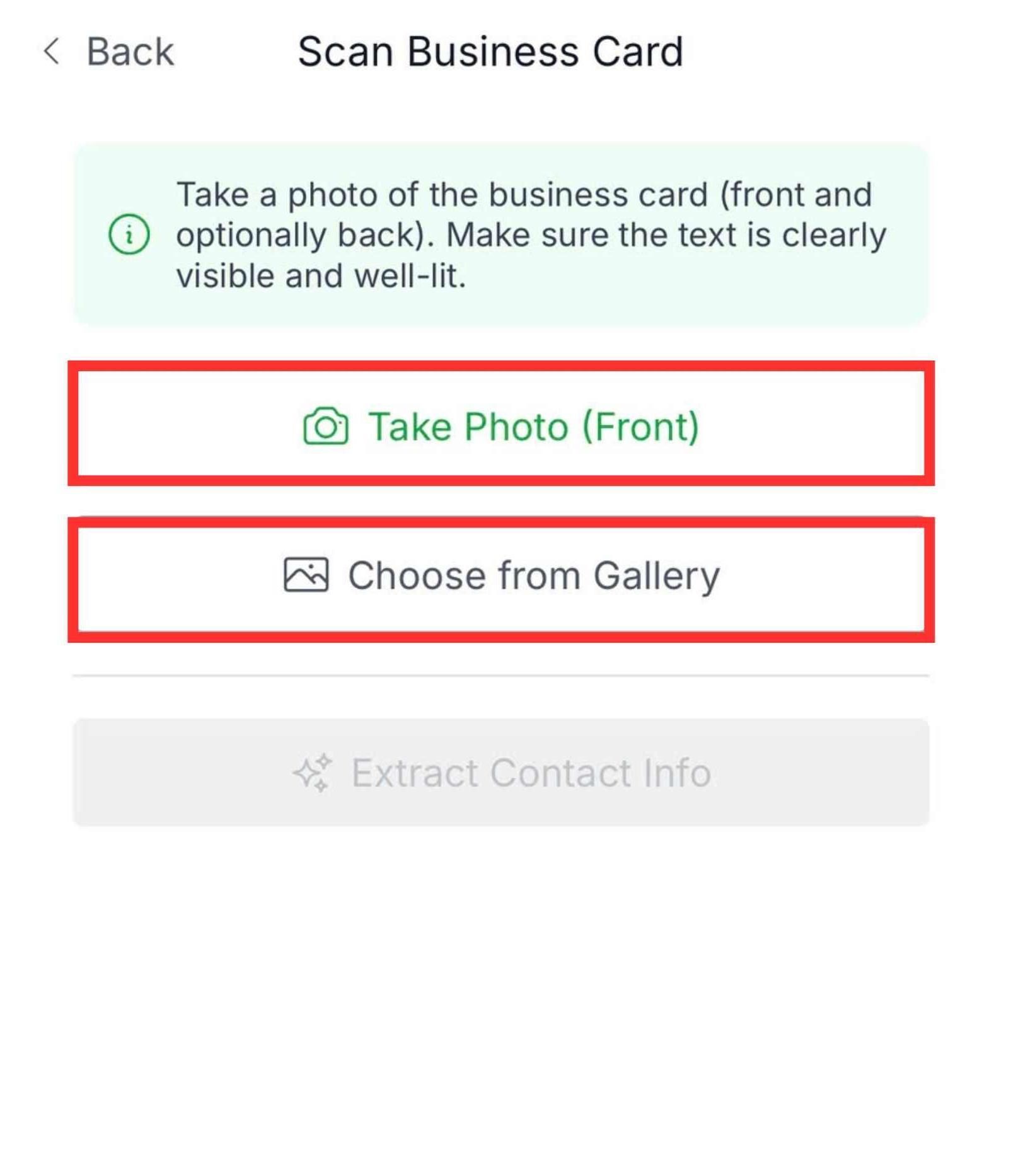
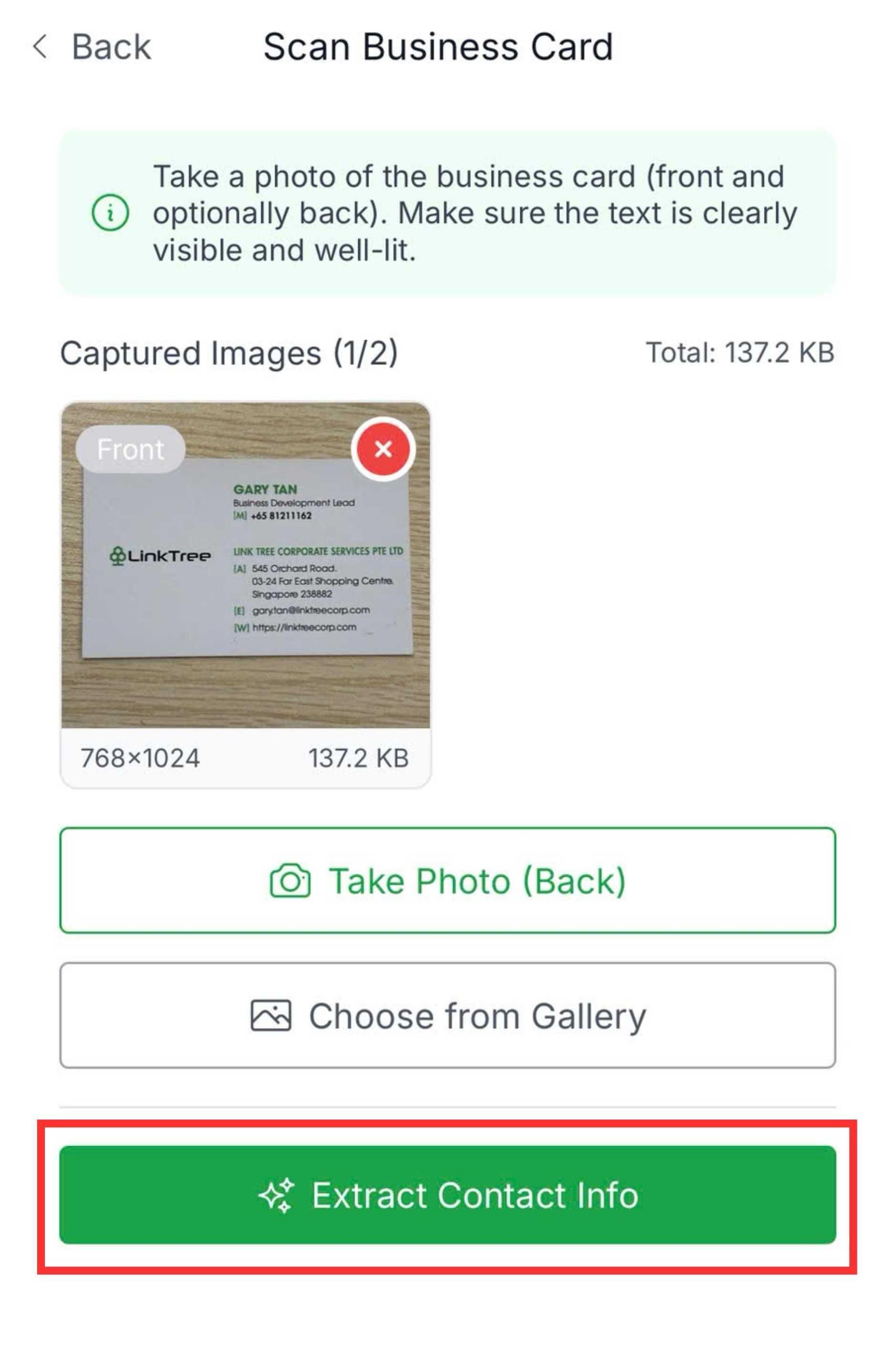
Step 5: Choose “Take Photo (Front)” to capture the card or “Choose from Gallery” to upload an existing image.
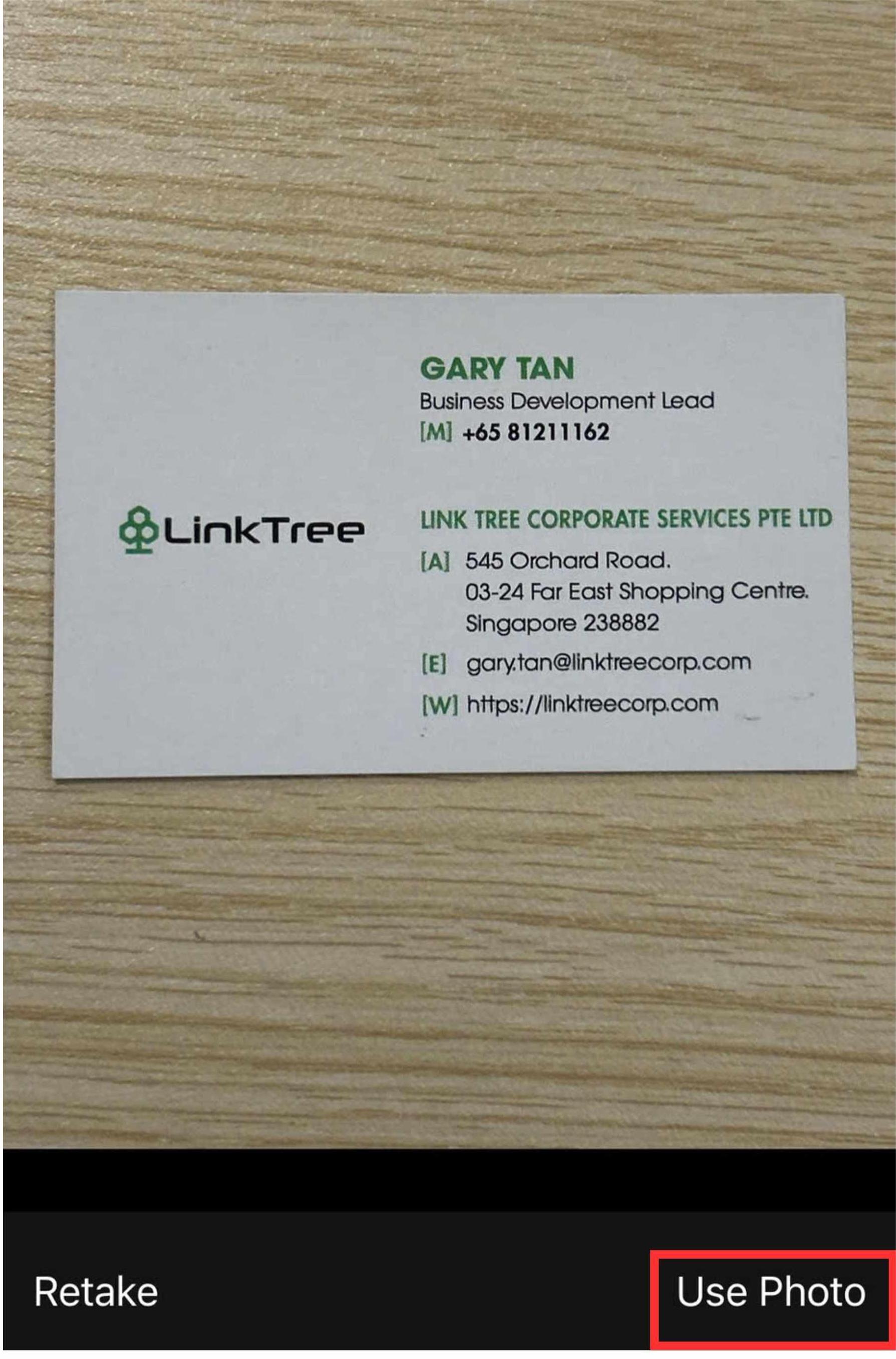
Step 6: Tap “Use Photo” to start scanning or “Retake (x)” to capture again.
Step 7: Tap “ Extract contact info” button
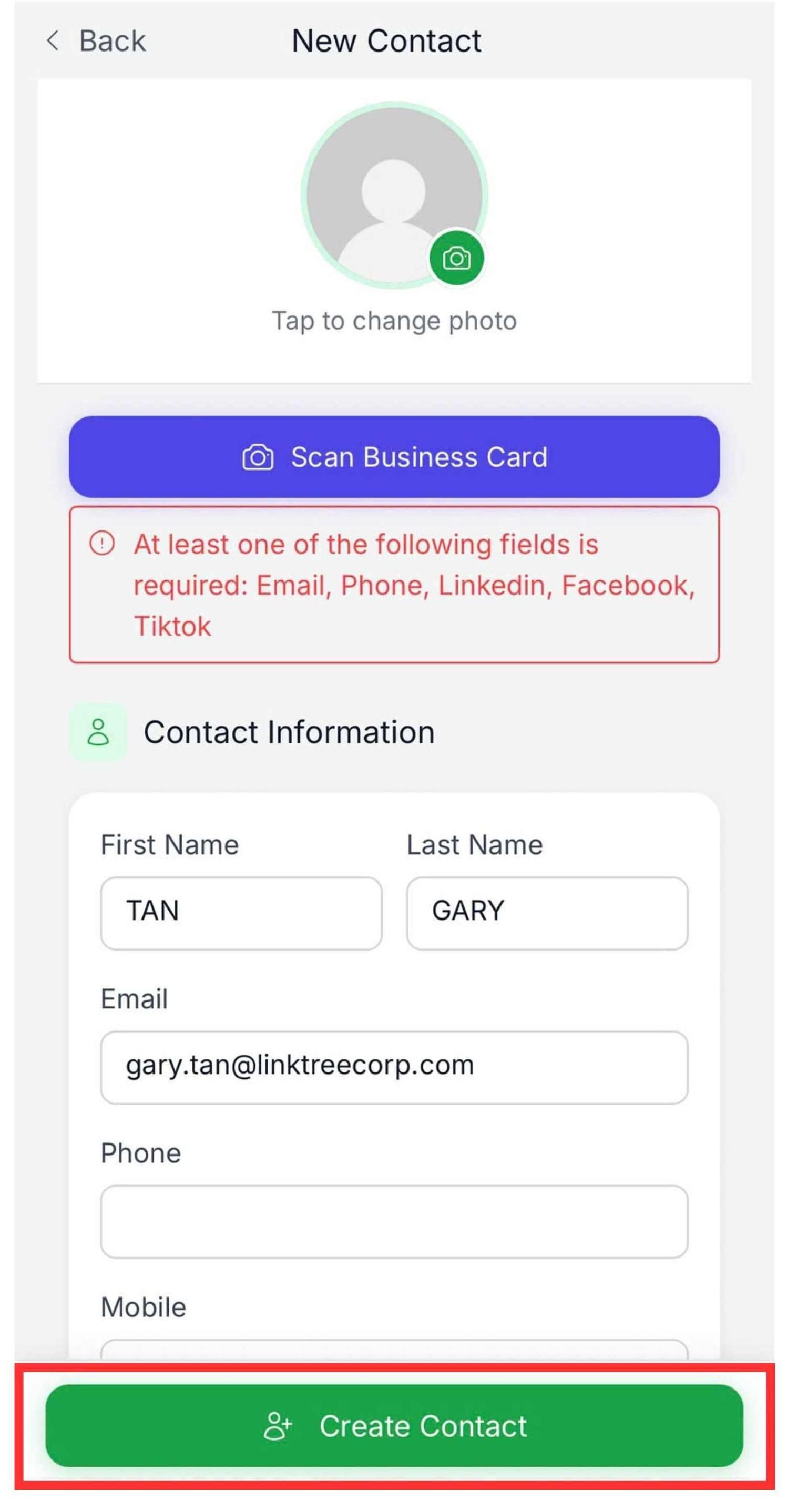
Step 8: Tap “Create Contact” to save the information.
Note: 1. After saving your contacts, tap the "download icon" at the top right corner to export an Excel file containing all saved contacts. This Excel file can be easily shared via Zalo, Facebook, Google Drive, or other platforms for quick email outreach and contact management. 2. When searching using a tag (e.g., VN Forwarder), you need to enter the full tag name for the contact to appear in the search results.